 June 2026 Release
Support for French Canadian
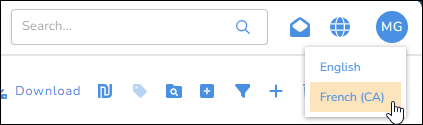
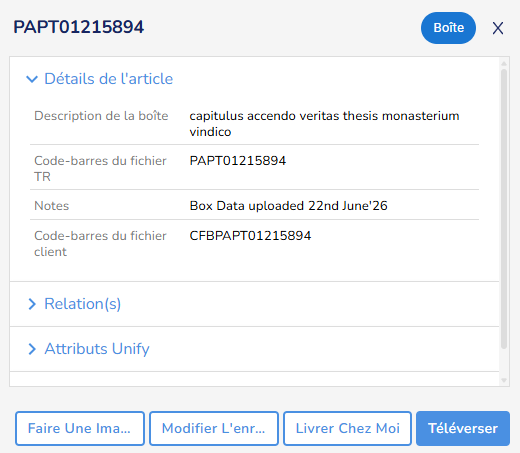
Click the  Language icon to display the Access Unify | Services Portal user interface in either English or French Canadian. All menus, labels, and buttons will be translated.
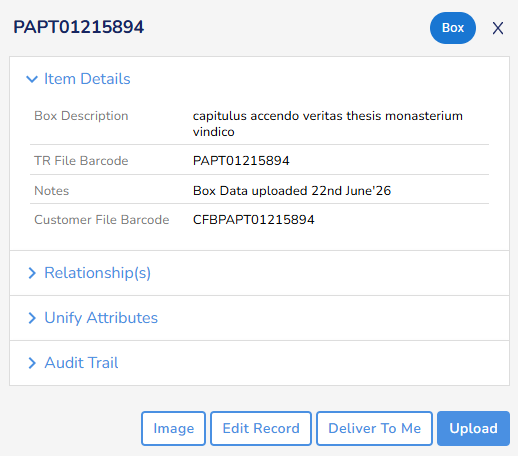
For example, Record Details in English:
Record Details in French Canadian:
Toolbar Enhancements
The Export and Download buttons have moved from the bottom of the page to the toolbar to centralize actions.

May 2026 Release
Retention
If the feature is enabled and you have permissions, the new Retention page provides read-only views into your organization's record retention information. You can view your organization's retention schedule and content types.
User Departments
An admin can assign a user to a Department. Then the user can only access records in that department. For example, if a user works in HR, they'll only be able to access HR records.
April 2026 Release
Destruction Orders
If this feature is enabled and you have the permission, you can place a destruction order for physical records that are stored in an Access records center.
Inventory Statuses
To provide more clarity on the status of records, in the Unify Attributes section of record's details panel we've renamed the Status field to Warehouse Status and created a new Unify Status field.
The Warehouse Status is the current physical state and location of a record within an Access Records Center.
The Unify Status is the record’s status in Access Unify | Services Portal.
February 2026 Release
Inventory Page Enhancements
The Inventory panel now displays the total number of records in All of Unify: all of the records you can access.
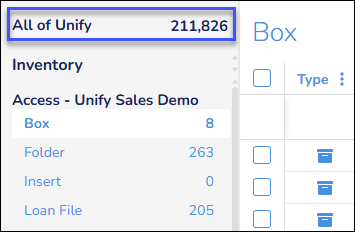
The Inventory panel also displays your inventory by account name.
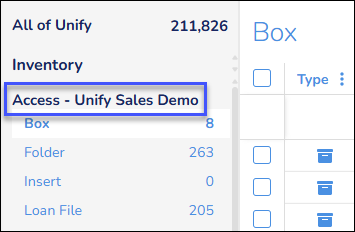
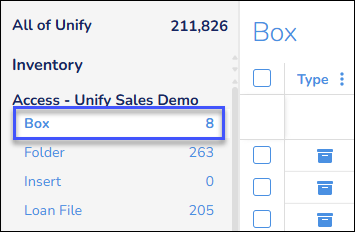
You can also click a record type, for example Box, to display those records on the Inventory page.
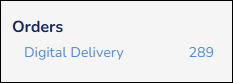
In the new Orders section of the Inventory panel you can view the type and number of your orders. And you can click an order type, for example Digital Delivery, to view the orders.
January 2026 Release
Physical Orders
If this feature is enabled and you have the permission, you can now place an order for Access to deliver or pickup physical records.
November 2025 Release
Global Filters
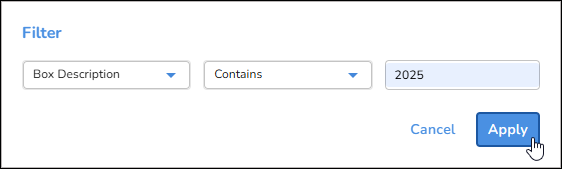
To filter the Inventory page grid, you can now click the Global Filter  button. Then you can specify a column to filter, an operator, and a filter value.
Global Search Results Enhancements
When you search for records, the Search Results page displays the records in a configurable card format. The cards now display more information.
And you can select multiple physical records and request Access to scan and digitize.

Inventory Page Enhancements
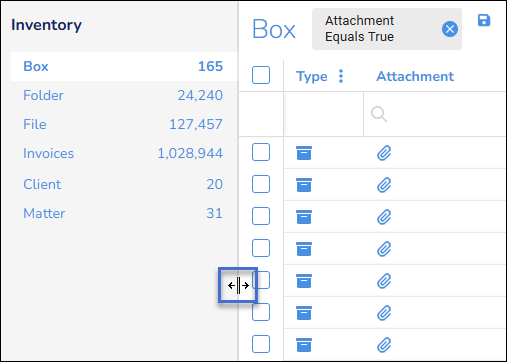
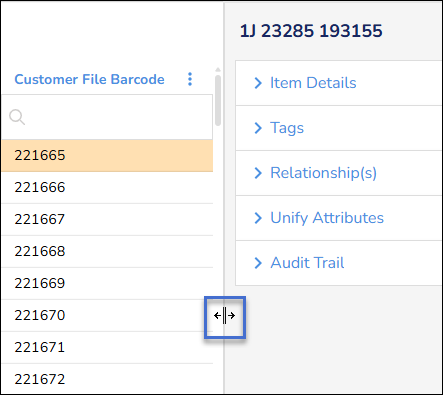
You can now re-size the Inventory panel to control how much of the Inventory page grid displays.
Record Details Enhancements
We’ve improved the Inventory page record details panel to make the information you want more prominent and available.
And if you click another record in the Inventory page grid, the panel will remain open and display the details for that record, dramatically improving the navigation of Access Unify | Services Portal.
The panel information is now displayed in specific sections that differ based on the record.
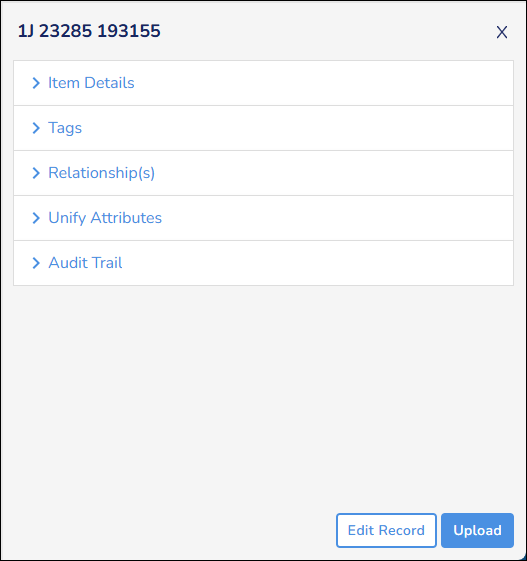
You can expand and collapse the sections. And if you expand or collapse a section, that section will continue to be expanded or collapsed until you make a change.
If the feature is enabled, the Inventory page grid displays a new column: Box/File Picture(s). If a physical record displays this icon  , the Box/File Picture(s) section of the record details panel includes an image of the record’s exterior.
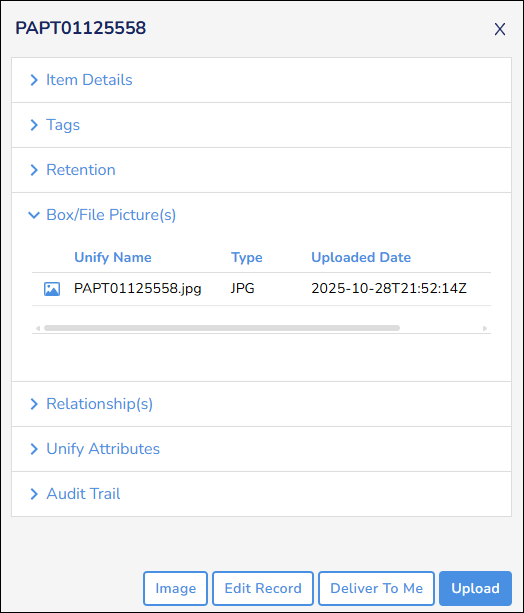
This image provides helpful context and reveals any markings that may not have been captured during indexing. This feature also makes it possible to audit boxes and files remotely, without requesting the physical record.
In addition, OCR Metadata from the image displays in the Unify Attributes section and is searchable through filters and Global Search.
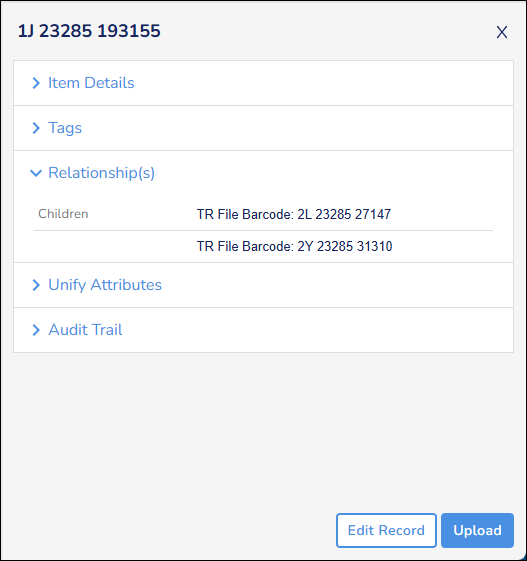
The new Relationship(s) section displays the parent (box) or children (files) of a physical record. You can click on a link to display the details of the parent or child.
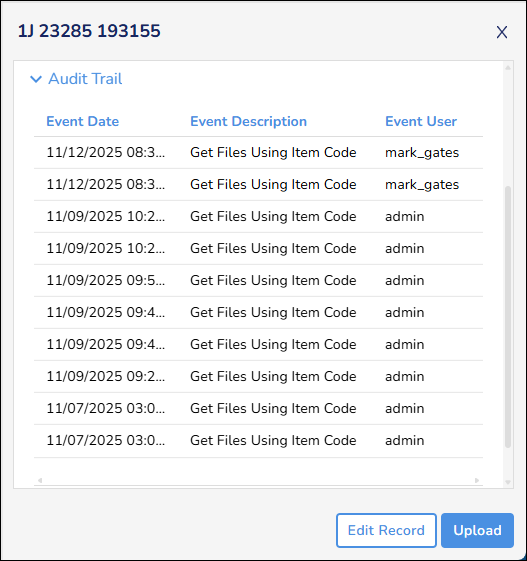
The Unify Attributes section displays additional information from Access.
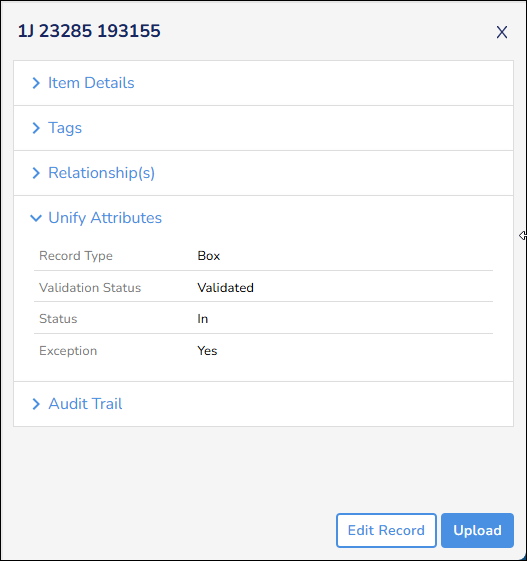
The Audit Trail section has been simplified.
If you have the permissions, you can now edit a record on the panel.
You can also now re-size the record details panel.
Inventory Tags Enhancements
If you have the permission, you can now remove tags from multiple records.
Upload Records
If this feature is enabled and you have the permission, you can now add multiple digital records on the Inventory page.
Order Statuses
On the Orders page, the statuses now more accurately reflect each stage of the fulfillment journey. The Status column also now includes color coding for easier identification.
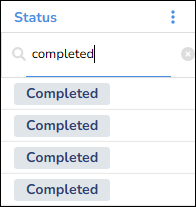
Available statuses: Ordered, Processing, In Transit, Fulfilled, Completed, and Contact Client Care.
Settings Page Enhancements
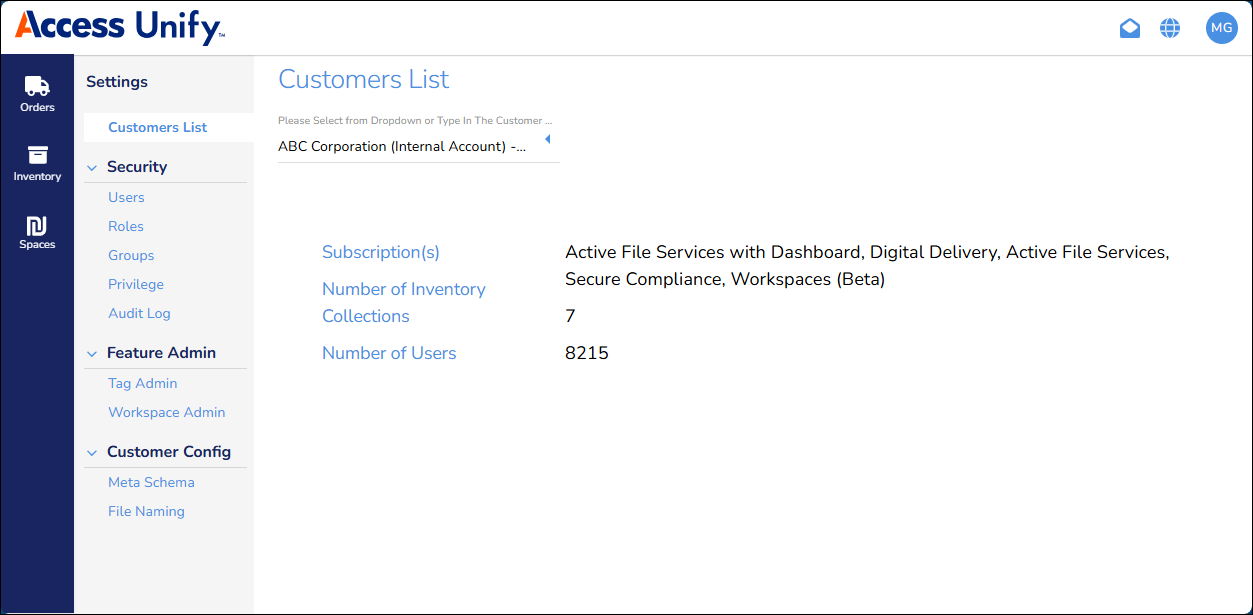
We’ve refreshed the Settings page to align with Access Unify | Services Portal's overall navigation. The vertical side panel stays visible, making it easier for admins to stay oriented and move between sections.
User Filters and Reports
An administrator can now filter the Users page grid by user Status, Customer, and Roles. These fields support type-ahead functionality, allowing you to quickly search by names and emails.
The Customer field lets you focus on users who have access to one or more customers (organizations) they can view on the Inventory page. And then you can display every user for that customer with a specific Role.
We’ve also added standard pagination to the Users page grid to make browsing easier and more familiar.
And you can download a report of users in the grid.
July 2025 Release
Global Search
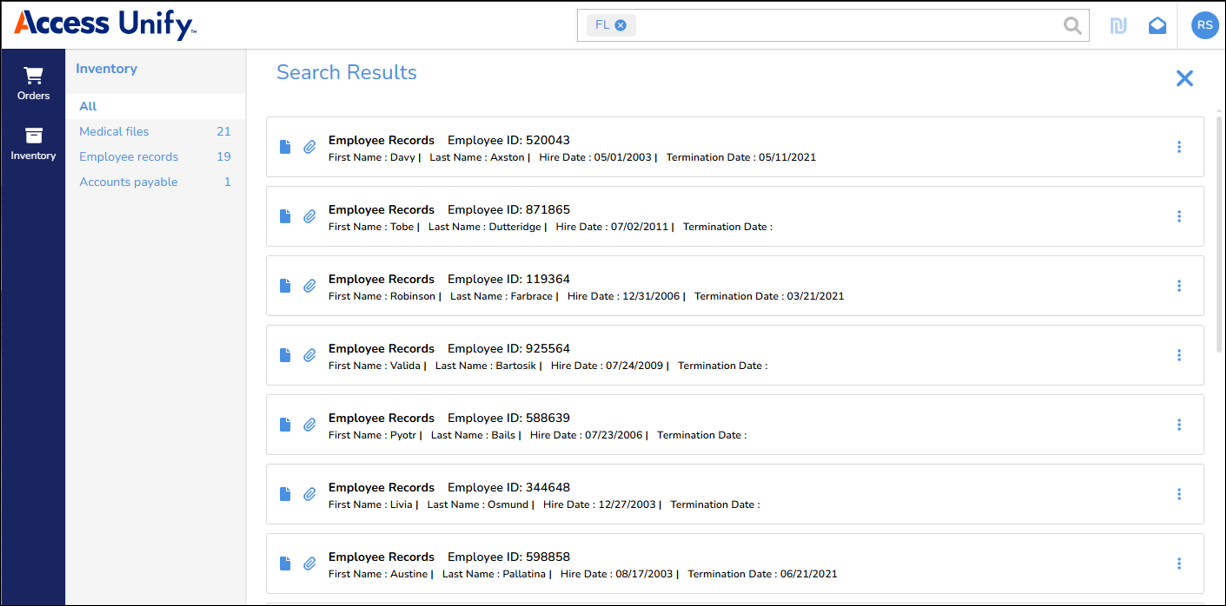
Global Search is a powerful and intuitive tool that lets you search across all your inventory collections, records, and orders from a single search bar. By entering keywords or tags, you can quickly find the records you need. And you don't need to specify a metadata field, which provides more flexibility and ease of use.
Your search results are displayed in a configurable card format.
Viewing All Account Inventories
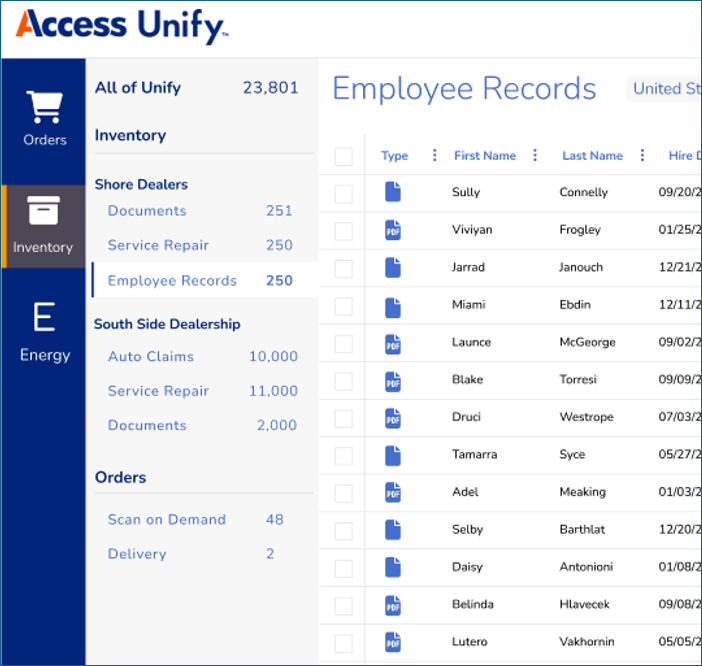
No more switching accounts! Based on your user role, the Inventory page displays a summary of all your inventory collections and orders. You can click an inventory collection to display in the Inventory page grid. And you can click an order type to display in the Orders page grid.
Tags
On the Inventory page, you can now tag records. Tagging is like adding labels to records. Tagging makes it easier to group, sort, and find records. For example, you can tag records for an audit, or destruction.
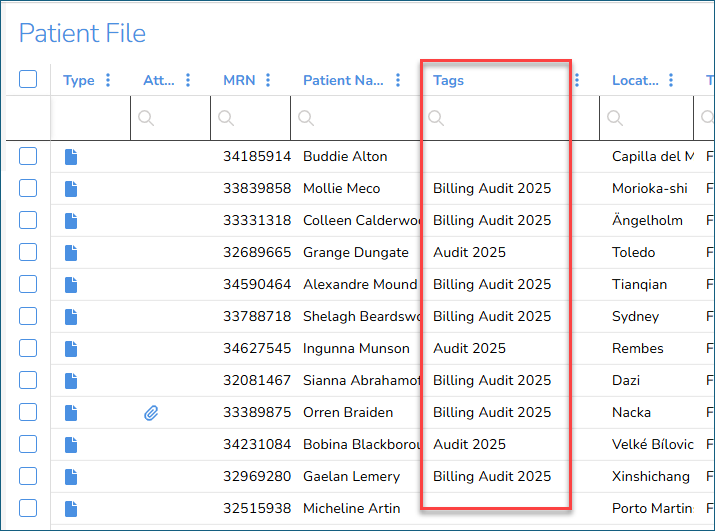
The tagging feature lets you:
-
Categorize and organize your records with precision, ensuring your records are always relevant and easily accessible.
-
Apply tags to multiple records simultaneously, saving time and effort.
-
Apply tags to individual records, providing precise control.
-
Apply multiple tags to records, breaking free from rigid folder structures.
-
Apply multiple tags to multiple record types, maintaining consistency and efficiency.
-
Filter the Tags column on the Inventory page grid by single or multiple tags to find the records you need.
-
Perform a Global Search for a tag.
-
Create and delete the record tags for your organization.
Hover your cursor over this image to see the basic steps for tagging records:

Permissions
Permissions have been renamed and sorted to provide more clarity. And throughout Access Unify | Services Portal, users will now only see buttons and pages for features they have permissions to access.
Multi-Factor Authentication
Access Unify | Services Portal now supports Multi-Factor Authentication (MFA), the powerful security feature.
When MFA is enabled for your user account, you'll receive an email from Access Unify | Services Portal to enroll in MFA. After you enroll in MFA, when you log into Access Unify | Services Portal, you'll verify your identity by entering a one-time code from an email. Or you'll verify your identity by entering a one-time code from an authenticator app installed on your mobile device like Google Authenticator, Authy, Auth0 Guardian, or Microsoft Authenticator.
Inventory Collections by Department
On the Meta Schema tab, the Access team can now configure Access Unify | Services Portal to group records by department or item type.
For example, a hospital has these departments: Medical Records, Radiology, and Pediatrics. All of the departments have patient medical files. On the Inventory page, the parent Patient Files inventory collection will display the child departments: Medical Records, Radiology, and Pediatrics.
December 2024 Release
Filter Operators
In the Inventory page grid, you can filter columns in the grid. Filtering now supports several operators that help you find the records you want. And saving a filter lets you re-use your search criteria.
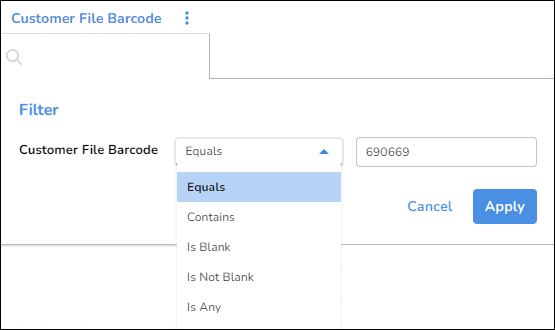
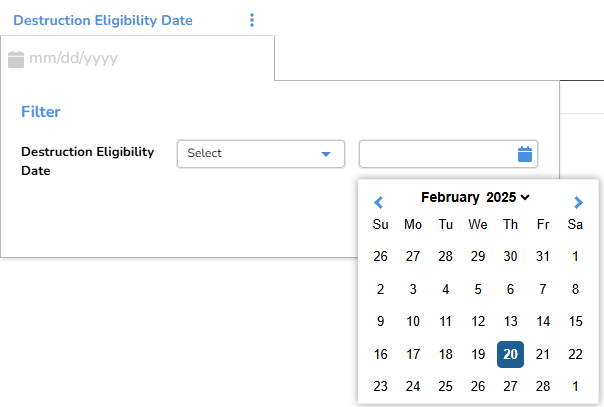
You can specify multiple filter operators, and the Inventory page displays the operators you’ve applied.

March 2024 Release
Attachments
Depending on your permissions, you can now upload digital image and PDF attachments to your organization's physical records. You can also download attachments.
Unsupported File Types
If the Document Viewer can't display a document with an unsupported file type, a message now displays providing the option to download the file or open the file in your Internet browser.